
You can change your cPanel (hosting account) password yourself in the client portal. It only takes a couple of minutes.
1Log in to the client portal
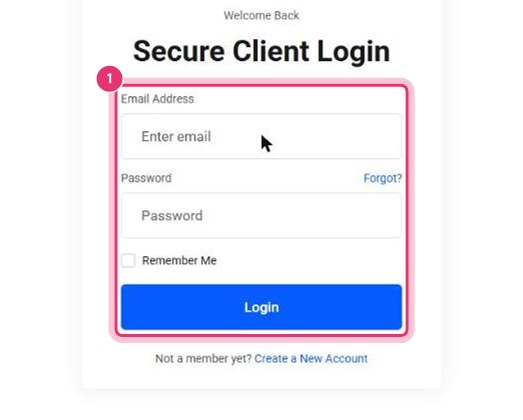
Open clients.area.lv. Enter your login details in the “Email Address” and “Password” fields, then click “Login”.
2Open your hosting service
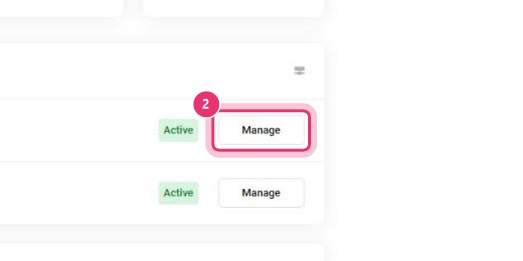
In the “Your Active Products/Services” section, click “Manage” next to the hosting plan whose password you want to change.
3Open the password change form
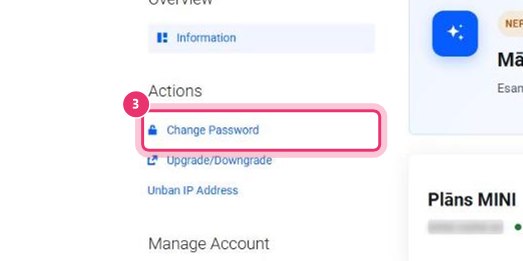
On the left side of the page, in the “Actions” section, click “Change Password”.
4Enter a new password
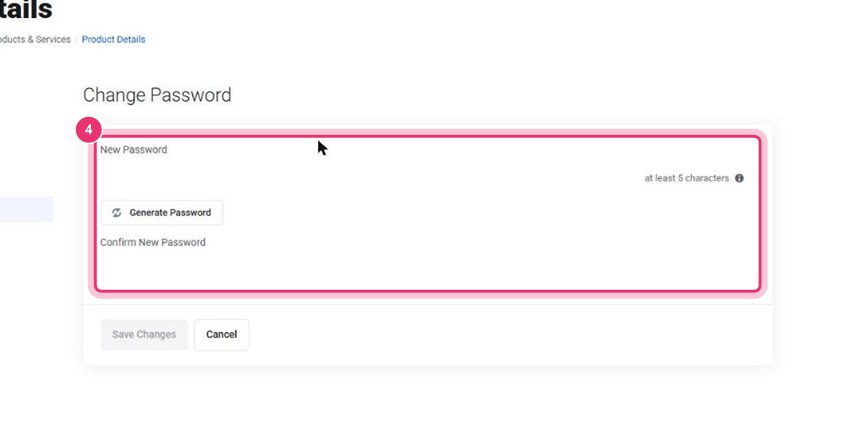
Type your new password (at least 5 characters) in the “New Password” field and repeat it in the “Confirm New Password” field. You can also use the “Generate Password” button. Keep the password somewhere safe, for example in a password manager.
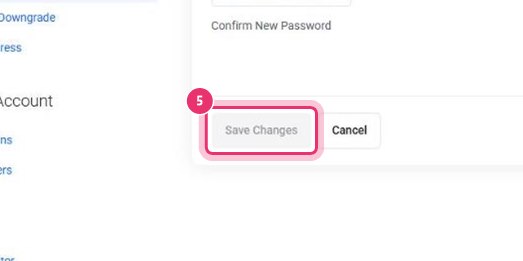
5Save the changes
Click “Save Changes”. From now on, use the new password whenever you log in to cPanel directly rather than through the client portal.
If you run into any difficulties, just write to us and we will help. support@area.lv