
These settings work with any email program: Outlook, Thunderbird, Apple Mail, your phone's email app and others. You can see the exact details of your mailbox in the client portal – the first steps show where. The client portal email section is in English.
1Log in to the client portal
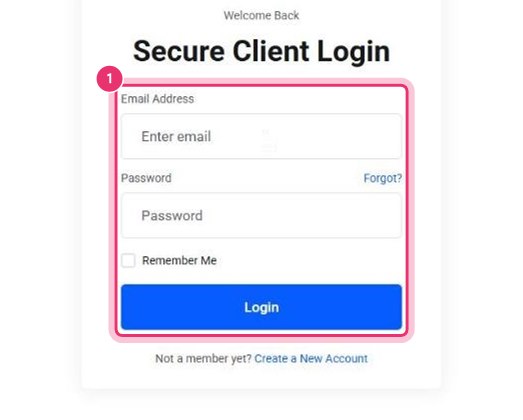
Open clients.area.lv. Enter your login details in the “Email Address” and “Password” fields, then click “Login”.
2Open your hosting service
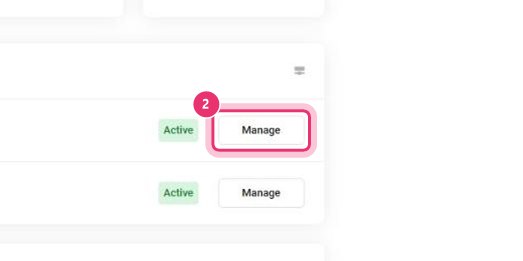
In the “Your Active Products/Services” section, click “Manage” next to the hosting plan that includes your domain.
3Open email accounts
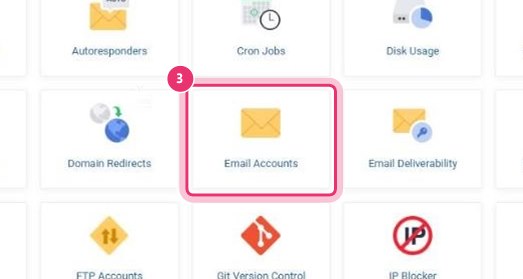
Scroll down to the “Manage Account” section and click “Email Accounts”.
4Open the mailbox details
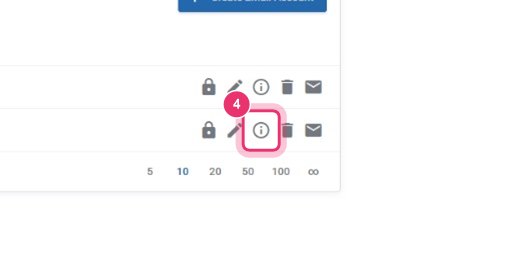
Next to the mailbox you need, click the “Account Configuration Details” icon (the letter “i” in a circle).
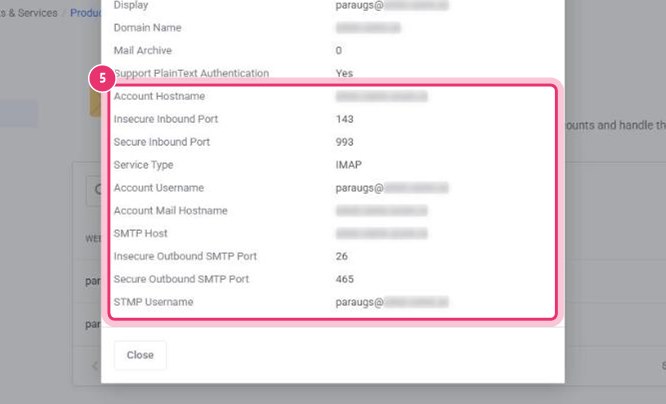
5Check the settings
The window shows all the details you need to enter in your email program: server name, ports and username. Then click “Close”.
6Enter the settings in your program
Username: your full email address, for example info@yourdomain.lv. Password: the mailbox password. Incoming server: mail.yourdomain.lv, IMAP, port 993, SSL/TLS. Outgoing server (SMTP): mail.yourdomain.lv, port 465, SSL/TLS, with authentication turned on (the same username and password).
Replace yourdomain.lv with your own domain. If you do not remember the password, change it as described in article 2.4.
✕Do not use your client portal password – you need the mailbox password.
7Choose IMAP
Choose IMAP if you read your email on several devices: messages stay on the server, and read, deleted and sent messages look the same everywhere.
POP3 (port 995, SSL/TLS) downloads messages to one device, and their status is not updated on other devices.
8If the connection fails
If port 465 does not work, use port 587 with STARTTLS for the outgoing server. For incoming mail you can also use IMAP port 143 or POP3 port 110 with STARTTLS.
SSL/TLS and STARTTLS are encrypted connections – your password is not sent in plain text. Do not use port 25 in email programs: many internet providers block it.
✕Do not choose a connection without encryption – your password would then be sent in plain text.
9Automatic setup
Some programs suggest the settings themselves, but the server name may be wrong, for example imap.yourdomain.lv. Always check that both servers are set to mail.yourdomain.lv.
Step-by-step Outlook setup is in article 2.3, email in the browser in article 2.2.
10If the program warns about a certificate
Check that there is no typo in the server name. If the warning remains, for example because the domain has not been moved to our server yet, enter your server name in the server fields, for example server52.areait.lv.
You can see the server name in the browser's address bar when you open cPanel from the client portal.
✕Do not accept a certificate issued for a different name.
11Common errors
The errors “503 Valid RCPT command must precede DATA” and “553 Unable to verify address” mean that authentication is not turned on for the outgoing server – see articles 2.10 and 2.11. If a wrong password is entered several times, the server temporarily blocks your IP address: you can unblock it in the client portal under “Manage Account” – “Unban IP Address”.
An IP address is the number of your internet connection. After unblocking, first enter the correct password in your program.
If you run into any difficulties, just write to us and we will help. support@area.lv