
You can change the mailbox password yourself in the client portal. It only takes a couple of minutes. After the change, enter the new password in every program and device where this mailbox is set up. The client portal email section is in English.
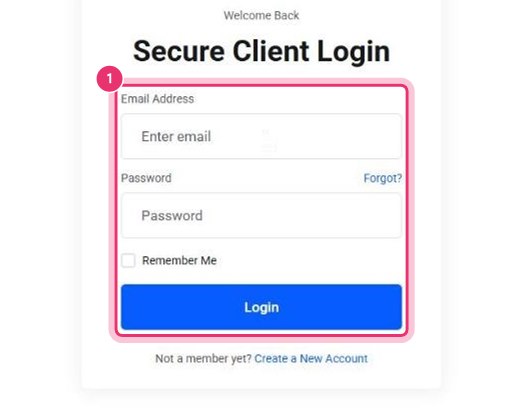
1Log in to the client portal
Open clients.area.lv. Enter your login details in the “Email Address” and “Password” fields, then click “Login”.
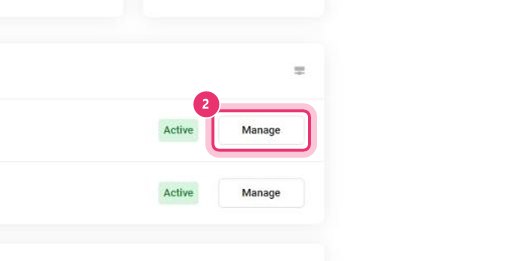
2Open your hosting service
In the “Your Active Products/Services” section, click “Manage” next to the hosting plan that includes your domain.
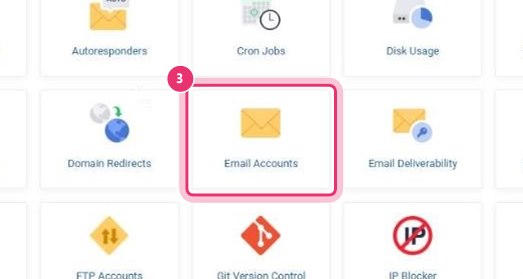
3Open email accounts
Scroll down to the “Manage Account” section and click “Email Accounts”.
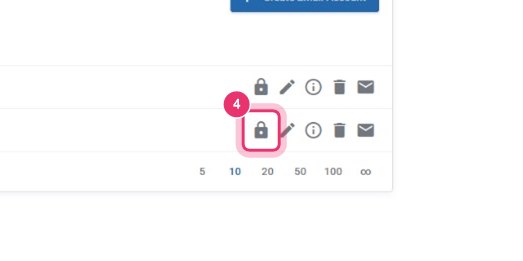
4Open the password change
Next to the mailbox you need, click the lock icon “Change Password”.
5Enter the new password
In the “New Password” field, type the new password or click “Generate” to create one automatically. Keep the password somewhere safe, for example in a password manager.
The “Email” field shows which mailbox the password is being changed for. A strong password is long (at least 12 characters) and contains uppercase and lowercase letters, numbers and symbols.
✕The password is shown in plain text in this field, so make sure nobody is looking at your screen.
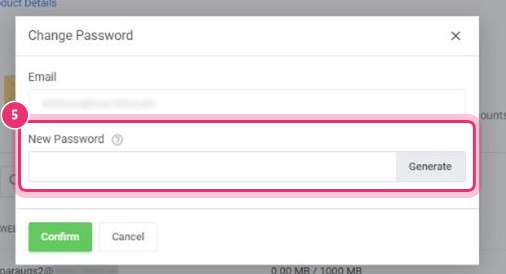
6Save the new password
Click “Confirm”. The new password works straight away.
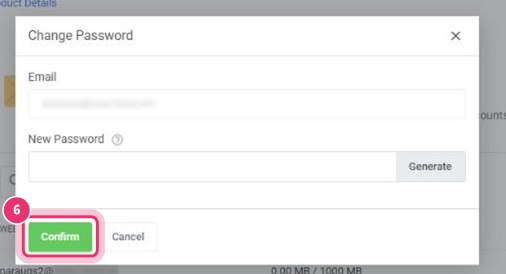
7Enter the new password in your programs
Also enter the new password in your email program, for example Outlook, and on your phone where this mailbox is set up. While they still have the old password, messages will not be received or sent.
If a program tries to connect with the old password several times, the server may temporarily block your IP address – see article 2.5 for how to unblock it. Changing the password in Outlook is described in article 2.3.
Another way: cPanel
You can also change the password in cPanel. The cPanel interface is in English.
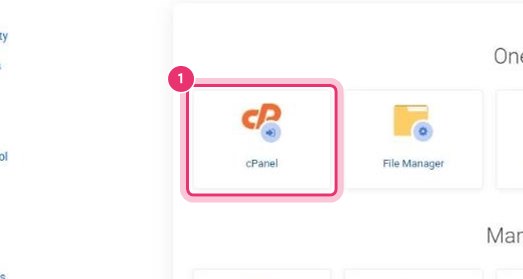
1Open cPanel
On the service page, in the “One Click Login” section, click “cPanel”. cPanel opens in the same tab.
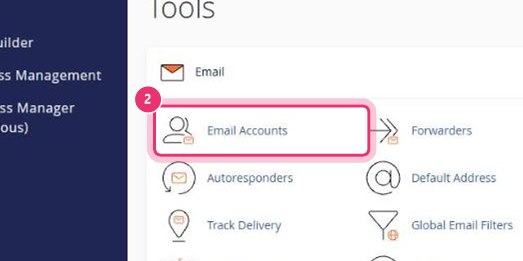
2Open the list of email accounts
On the cPanel home page, in the “Email” section, click “Email Accounts”.
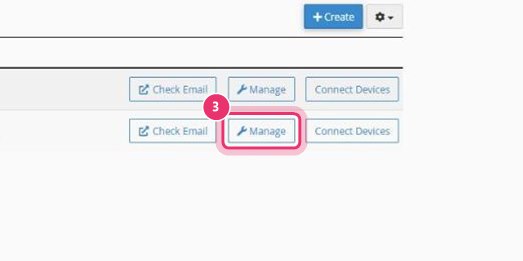
3Choose your email account
Find your email address in the list and click “Manage” in its row.
✕Do not choose the row marked “System”: it is the main cPanel account address.
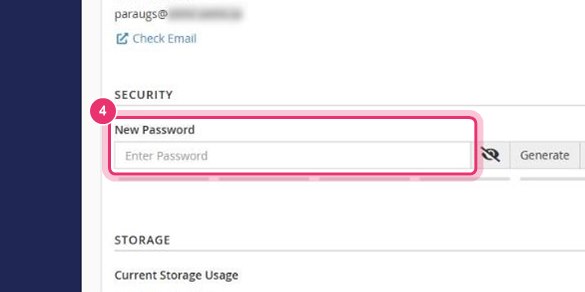
4Enter a new password
In the “SECURITY” section, type your new password in the “New Password” field. You can also click “Generate” to let cPanel create a strong password for you. Keep it somewhere safe, for example in a password manager.
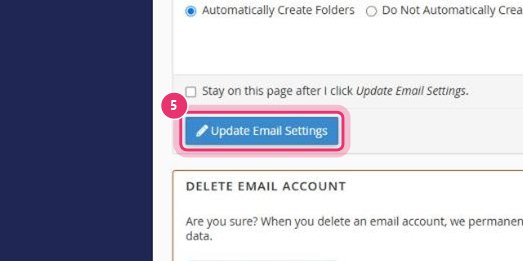
5Save the changes
Scroll down and click “Update Email Settings”. Then update the password in your email app and on your phone, wherever this account is set up.
✕Do not click “Delete Email Account”: it permanently deletes the account and all its messages.
If you run into any difficulties, just write to us and we will help. support@area.lv