
This guide shows how to add a mailbox to the new Outlook for Windows using IMAP. You will need your full email address and the mailbox password. Most important: in the server field, enter mail.yourdomain.lv, not the address Outlook suggests. The pictures show Outlook in Latvian; the meaning of each label is given in brackets.
1Open Outlook
Open the Outlook app. The first time you open it, you will see the “Esiet sveicināts jaunajā Outlook!” (Welcome to the new Outlook!) window. If Outlook already has another account, click “Pievienot kontu” (Add account) on the left.
In the older version of Outlook the windows look different, but the settings are the same as in this guide and in article 2.5.
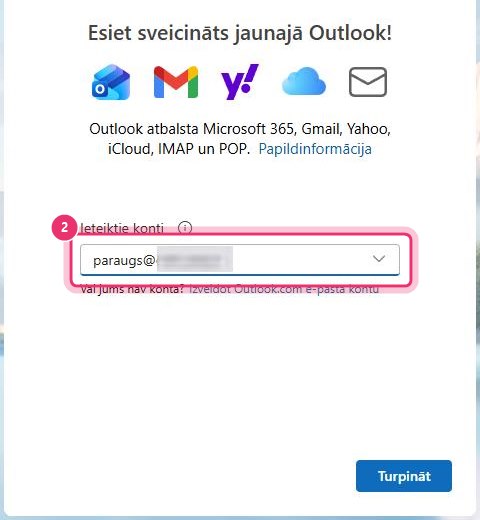
2Enter your email address
In the “Ieteiktie konti” (Suggested accounts) field, type your full email address and click “Turpināt” (Continue).
If the field already contains another address, for example your Microsoft account, delete it and type your own.
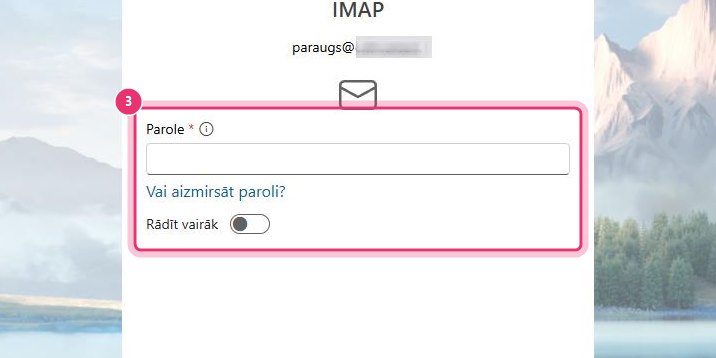
3Enter the password
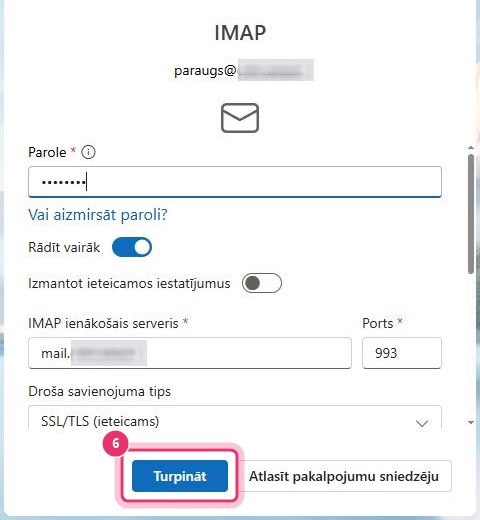
Outlook chooses IMAP by itself. In the “Parole” (Password) field, type the mailbox password and turn on “Rādīt vairāk” (Show more).
✕Do not enter your client portal password – you need the mailbox password.
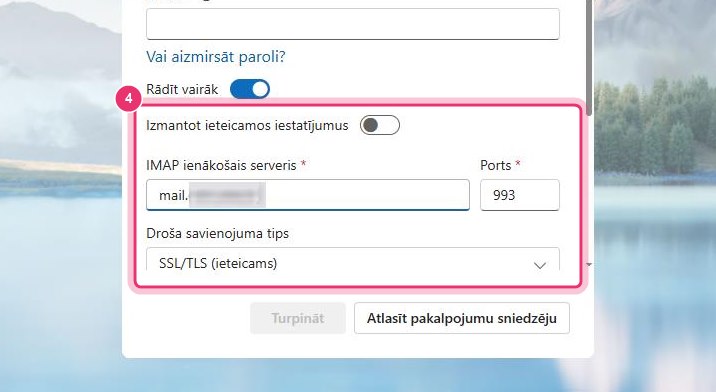
4Correct the incoming mail server
Turn off “Izmantot ieteicamos iestatījumus” (Use recommended settings). In the “IMAP ienākošais serveris” (IMAP incoming server) field, enter mail.yourdomain.lv (with your own domain). “Ports” (Port) must be 993 and “Droša savienojuma tips” (Secure connection type) “SSL/TLS (ieteicams)” (recommended).
You can also see the correct server details in the client portal: click the “Account Configuration Details” icon next to the mailbox.
✕Do not keep imap.yourdomain.lv suggested by Outlook – you will not be able to connect with it.
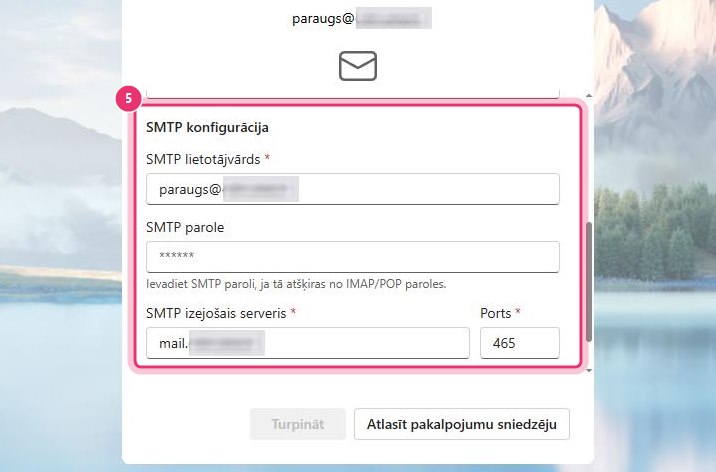
5Correct the outgoing mail server
Scroll down to “SMTP konfigurācija” (SMTP configuration). The “SMTP lietotājvārds” (SMTP username) field must contain your full email address. In the “SMTP izejošais serveris” (SMTP outgoing server) field, enter mail.yourdomain.lv, “Ports” 465 and “Droša savienojuma tips” “SSL/TLS (ieteicams)”.
Leave “SMTP parole” (SMTP password) empty: on our servers it is the same password.
6Continue
Scroll back up and click “Turpināt” (Continue).
7Confirm the sync
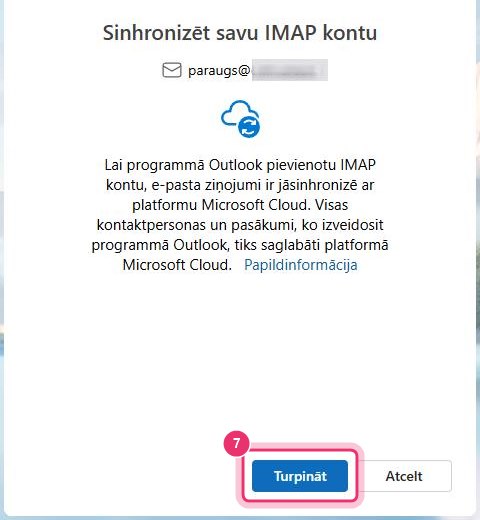
Outlook tells you that the account will be synced with the Microsoft Cloud. Click “Turpināt” (Continue).
The new Outlook always connects IMAP accounts through the Microsoft cloud – you cannot add the account without this step.
8Check the result
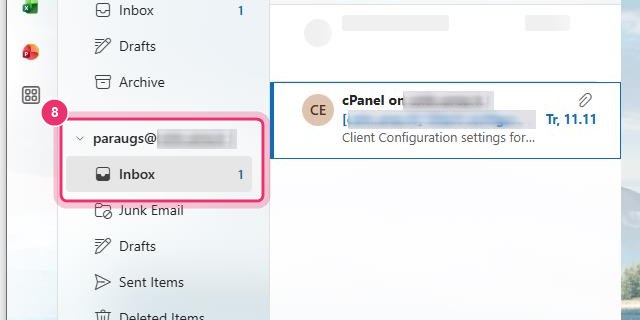
After a moment your address and folders, for example “Inbox”, appear on the left. Send yourself a test message to check sending too.
Folder names (Inbox, Sent Items) may be in English – they come from the server.
If you see an error
If Outlook shows "Radās problēma. Mēģiniet vēlreiz. Iespējams, ir nepieciešama programmas parole." (Something went wrong. Try again. You may need an app password.), the password is usually wrong.
1Check the password
Check the password in webmail (article 2.2): log in with the same password. If it does not work, change it in the client portal with the “Change Password” icon next to the mailbox.
2Try again with the new password
Outlook remembers the password you entered before, so do not just click “Turpināt”. Click “Detalizētā iestatīšana” (Advanced setup), choose “IMAP” in the list and fill in the fields again, starting from step 3.
If you run into any difficulties, just write to us and we will help. support@area.lv