
If a message you are expecting has not arrived, check the following in order. Most often the message has gone to the spam folder or the mailbox is full.
1Log in to the client portal
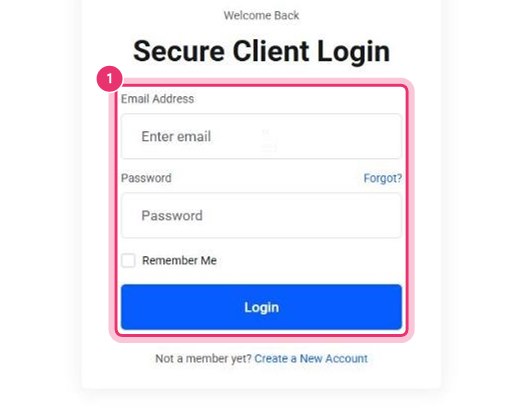
Open clients.area.lv. Enter your login details in the “Email Address” and “Password” fields, then click “Login”.
2Open your hosting service
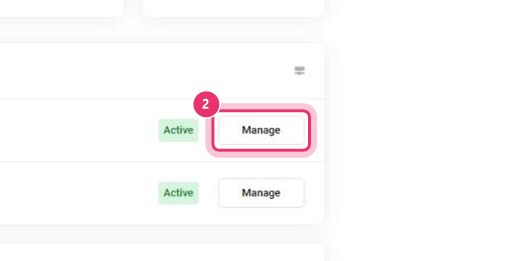
In the “Your Active Products/Services” section, click “Manage” next to the hosting plan that includes your domain.
3Open email accounts
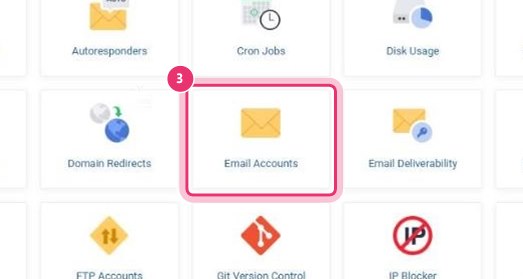
Scroll down to the “Manage Account” section and click “Email Accounts”.
4Check that the mailbox is not full
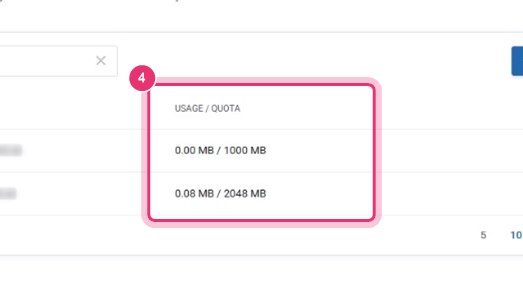
The “USAGE / QUOTA” column shows how much space the mailbox uses and how much it is allowed. If the two numbers are almost the same, the mailbox is full and new messages are not accepted. Increase the quota as described in the article “2.6. How to change the mailbox storage limit?” or delete old messages.
5Open webmail
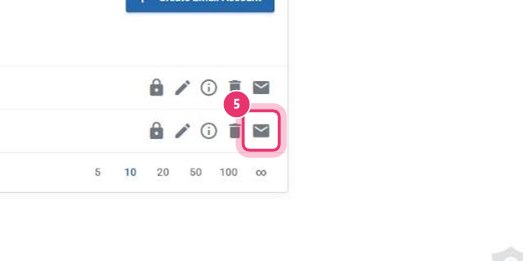
Next to the mailbox you need, click the envelope icon “Webmail”. Webmail opens in a new tab without asking for a password. If the “Open your inbox” page opens, click “Open”.
Webmail is email in your browser – you do not need to install anything. On our servers the webmail program is Roundcube.
6Check the spam folder
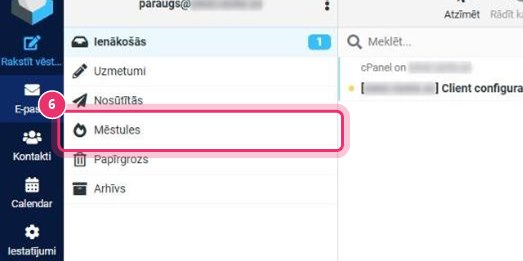
On the left, open the “Mēstules” folder (Spam). If the message is there, you can open and read it as usual.
The picture shows webmail in Latvian; in English the folder is usually called Spam or Junk. The server puts messages that look like advertising or fraud into this folder. If you also read your mail in a program such as Outlook or on your phone, check this folder there too.
7Check the MX records
If no messages at all arrive at your domain, your domain's MX records may be wrong. To check them, see the article “2.12. How to change your domain's MX records?”.
An MX record tells other servers where to send mail for your domain. If you changed it recently, the change may take a few hours to start working.
8If you still cannot find the message
Write to us and include your email address, the sender's address and the approximate time the message was sent. If the sender received a notice that the message was not delivered, ask them to forward it to you and attach it to your message.
Extra check: the message route in cPanel
In cPanel you can see whether a message reached our server at all and what happened to it. The cPanel interface is in English. To open cPanel, see the article “1.2. Logging in to cPanel”.
1Open the delivery report
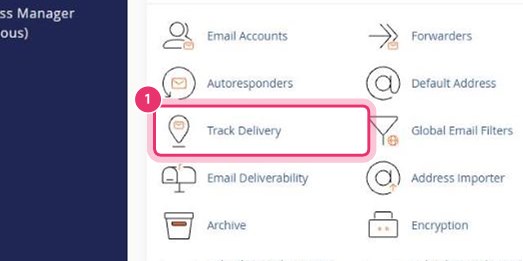
On the cPanel home page, in the “Email” section, click “Track Delivery”.
2Search by recipient
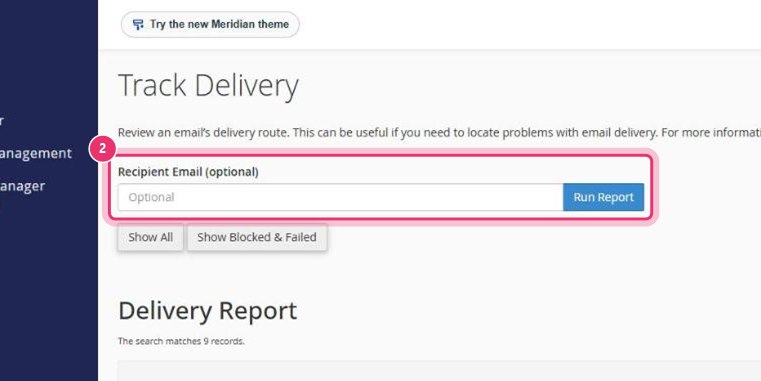
In the “Recipient Email (optional)” field, type your email address and click “Run Report”. The "Show Blocked & Failed" button shows only messages that were not delivered.
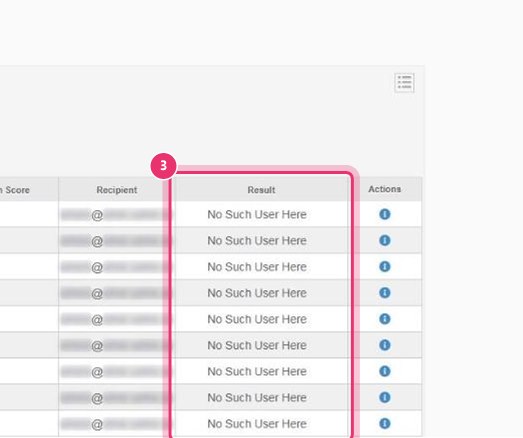
3Read the result
Find the message in the table by time and sender. The “Result” column shows what happened to it. For example, “No Such User Here” means that the address does not exist (often a typo). To see delivered messages too, tick “Show Successes”.
If the message is not in the list at all, it never reached our server. Ask the sender whether they received an error notice, and check the MX records.
If you run into any difficulties, just write to us and we will help. support@area.lv